
Sometimes, there is a requirement to put right something that wasn't intended. In this blog post, we explore how we can unpin the Microsoft 365 companion apps when they were accidentally pinned for your users
🧑💻Note: The scripts in this blog post can be found on my Github page: Here
The companion Apps
The companion apps that we are talking about are 3x new Microsoft 365 applications:
- Files
- Calendar
- People

How we got here
A common misconception when configuring Microsoft Copilot in your environment is enabling Pin Microsoft Companion Apps and thinking that this would only apply to those users that you have licensed or scoped. The reality is, that this pins the companion apps on all directory users on compatible devices.
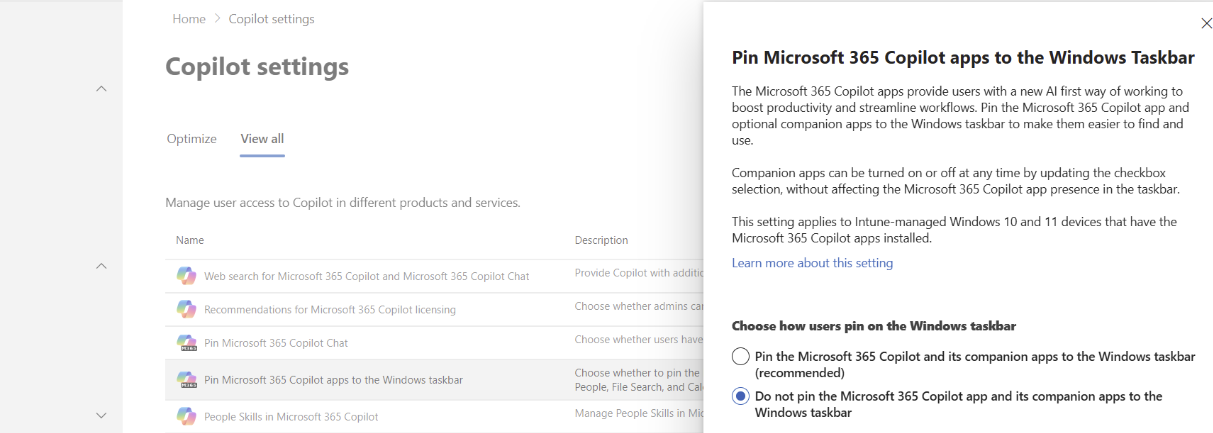
When you set not to pin the apps (see below) you might expect that Microsoft would clear up these apps. The reality is, that it just prevents future users from having the apps pinned, it does not tidy up or remediate the previously pinned applications.
The detection and remediation
Detection Script
$NonCompliant = $false

# Microsoft 365 Companion Apps startup state
$StartupBase = 'HKCU:\Software\Classes\Local Settings\Software\Microsoft\Windows\CurrentVersion\AppModel\SystemAppData\Microsoft.M365Companions_8wekyb3d8bbwe'

$StartupIds = @(
    'CalendarStartupId',
    'FilesStartupId',
    'PeopleStartupId'
)

foreach ($StartupId in $StartupIds) {
    $Path = Join-Path $StartupBase $StartupId

    if (Test-Path $Path) {
        $State = (Get-ItemProperty -Path $Path -Name State -ErrorAction SilentlyContinue).State

        # 0 = enabled, 1 = disabled
        if ($State -eq 0) {
            Write-Output "$StartupId is enabled"
            $NonCompliant = $true
        }
    }
}

# Check for AppsFolder taskbar pins
try {
    $Shell = New-Object -ComObject Shell.Application
    $AppsFolder = $Shell.Namespace('shell:AppsFolder')

    $TargetApps = foreach ($Item in $AppsFolder.Items()) {
        $Name = $Item.Name
        $Aumid = $Item.ExtendedProperty('System.AppUserModel.ID')
        $PackageFamilyName = $Item.ExtendedProperty('System.AppUserModel.PackageFamilyName')

        if (
            $PackageFamilyName -eq 'Microsoft.M365Companions_8wekyb3d8bbwe' -or
            $Aumid -like 'Microsoft.M365Companions*' -or
            $Name -match '^(People|File Search|Files|Calendar)$'
        ) {
            [pscustomobject]@{
                Name = $Name
                Item = $Item
            }
        }
    }

    foreach ($App in $TargetApps) {
        $VerbNames = @($App.Item.Verbs()) | ForEach-Object {
            $_.Name.Replace('&', '')
        }

        if (($VerbNames -join '|') -match 'Unpin from taskbar') {
            Write-Output "$($App.Name) appears to be pinned to the taskbar"
            $NonCompliant = $true
        }
    }
}
catch {
    Write-Warning "Unable to query shell:AppsFolder taskbar state: $($_.Exception.Message)"
}

if ($NonCompliant) {
    exit 1
}

exit 0
Remediation Script
# Disable Microsoft 365 Companion Apps startup state
$StartupBase = 'HKCU:\Software\Classes\Local Settings\Software\Microsoft\Windows\CurrentVersion\AppModel\SystemAppData\Microsoft.M365Companions_8wekyb3d8bbwe'

$StartupIds = @(
    'CalendarStartupId',
    'FilesStartupId',
    'PeopleStartupId'
)

foreach ($StartupId in $StartupIds) {
    $Path = Join-Path $StartupBase $StartupId

    if (Test-Path $Path) {
        try {
            Set-ItemProperty -Path $Path -Name State -Value 1 -Type DWord -ErrorAction Stop
            Write-Output "Disabled startup state: $StartupId"
        }
        catch {
            Write-Warning "Failed to disable startup state $StartupId : $($_.Exception.Message)"
        }
    }
}

# Unpin from taskbar using shell:AppsFolder
try {
    $Shell = New-Object -ComObject Shell.Application
    $AppsFolder = $Shell.Namespace('shell:AppsFolder')

    $TargetApps = foreach ($Item in $AppsFolder.Items()) {
        $Name = $Item.Name
        $Aumid = $Item.ExtendedProperty('System.AppUserModel.ID')
        $PackageFamilyName = $Item.ExtendedProperty('System.AppUserModel.PackageFamilyName')

        if (
            $PackageFamilyName -eq 'Microsoft.M365Companions_8wekyb3d8bbwe' -or
            $Aumid -like 'Microsoft.M365Companions*' -or
            $Name -match '^(People|File Search|Files|Calendar)$'
        ) {
            [pscustomobject]@{
                Name = $Name
                Item = $Item
            }
        }
    }

    foreach ($App in $TargetApps) {
        try {
            $Verbs = @($App.Item.Verbs())

            $UnpinVerb = $Verbs | Where-Object {
                $_.Name.Replace('&', '') -match 'Unpin from taskbar'
            } | Select-Object -First 1

            if ($UnpinVerb) {
                $UnpinVerb.DoIt()
                Write-Output "Unpinned from taskbar: $($App.Name)"
                Start-Sleep -Milliseconds 500
            }
            else {
                # Canonical verb fallback
                $App.Item.InvokeVerb('taskbarunpin')
                Write-Output "Attempted canonical unpin for: $($App.Name)"
                Start-Sleep -Milliseconds 500
            }
        }
        catch {
            Write-Warning "Failed to unpin $($App.Name): $($_.Exception.Message)"
        }
    }
}
catch {
    Write-Warning "Unable to process shell:AppsFolder items: $($_.Exception.Message)"
}

# Stop currently running companion app processes
try {
    $Packages = Get-AppxPackage -Name 'Microsoft.M365Companions' -ErrorAction SilentlyContinue

    foreach ($Package in $Packages) {
        $InstallLocation = $Package.InstallLocation

        if ($InstallLocation) {
            Get-Process -ErrorAction SilentlyContinue |
                Where-Object {
                    $_.Path -and $_.Path -like "$InstallLocation*"
                } |
                Stop-Process -Force -ErrorAction SilentlyContinue
        }
    }
}
catch {
    Write-Warning "Failed to stop running Microsoft 365 Companion processes: $($_.Exception.Message)"
}

# Refresh shell
Stop-Process -Name explorer -Force -ErrorAction SilentlyContinue
start-process explorer

exit 0
Once ran, this will remove the pinned icons and will also prevent the automatic startup of the companion apps. Explorer is restarted to make the change immediate.
But what if we want to pin the apps, but scope the deployment?
We can adjust the detection and remediation to scope the pinning of these apps to CoPilot test users. For example, we might have a group called CoPilot-Testers. With this group, we can then target a detection and remediation as follows:
Detection Script
$RequiredApps = @(
    'People',
    'Files',
    'File Search',
    'Calendar'
)

$CompanionPackageFamilyName = 'Microsoft.M365Companions_8wekyb3d8bbwe'
$NonCompliant = $false

try {
    $Shell = New-Object -ComObject Shell.Application
    $AppsFolder = $Shell.Namespace('shell:AppsFolder')

    $CompanionApps = foreach ($Item in $AppsFolder.Items()) {
        $Name = $Item.Name
        $Aumid = $Item.ExtendedProperty('System.AppUserModel.ID')
        $PackageFamilyName = $Item.ExtendedProperty('System.AppUserModel.PackageFamilyName')

        if (
            $PackageFamilyName -eq $CompanionPackageFamilyName -or
            $Aumid -like 'Microsoft.M365Companions*'
        ) {
            [pscustomobject]@{
                Name = $Name
                AppUserModelId = $Aumid
                PackageFamilyName = $PackageFamilyName
                Item = $Item
            }
        }
    }

    if (-not $CompanionApps) {
        Write-Output "Microsoft 365 Companion Apps not found for this user."
        exit 1
    }

    foreach ($RequiredApp in $RequiredApps) {
        $App = $CompanionApps | Where-Object {
            $_.Name -eq $RequiredApp
        } | Select-Object -First 1

        if (-not $App) {
            Write-Output "Required companion app not found: $RequiredApp"
            $NonCompliant = $true
            continue
        }

        $VerbNames = @($App.Item.Verbs()) | ForEach-Object {
            $_.Name.Replace('&', '')
        }

        if (($VerbNames -join '|') -match 'Pin to taskbar') {
            Write-Output "$RequiredApp is available but not pinned to the taskbar."
            $NonCompliant = $true
        }
        elseif (($VerbNames -join '|') -match 'Unpin from taskbar') {
            Write-Output "$RequiredApp appears to already be pinned."
        }
        else {
            Write-Output "$RequiredApp taskbar pin state could not be determined."
            $NonCompliant = $true
        }
    }
}
catch {
    Write-Warning "Unable to query Microsoft 365 Companion Apps: $($_.Exception.Message)"
    exit 1
}

# Optional: check companion startup state
$StartupBase = 'HKCU:\Software\Classes\Local Settings\Software\Microsoft\Windows\CurrentVersion\AppModel\SystemAppData\Microsoft.M365Companions_8wekyb3d8bbwe'

$StartupIds = @(
    'CalendarStartupId',
    'FilesStartupId',
    'PeopleStartupId'
)

foreach ($StartupId in $StartupIds) {
    $Path = Join-Path $StartupBase $StartupId

    if (Test-Path $Path) {
        $State = (Get-ItemProperty -Path $Path -Name State -ErrorAction SilentlyContinue).State

        # 0 = enabled, 1 = disabled
        if ($State -ne 0) {
            Write-Output "$StartupId is not enabled."
            $NonCompliant = $true
        }
    }
}

if ($NonCompliant) {
    exit 1
}

exit 0
Remediation
$RequiredApps = @(
    'People',
    'Files',
    'File Search',
    'Calendar'
)

$CompanionPackageFamilyName = 'Microsoft.M365Companions_8wekyb3d8bbwe'

# Enable Microsoft 365 Companion Apps startup state
$StartupBase = 'HKCU:\Software\Classes\Local Settings\Software\Microsoft\Windows\CurrentVersion\AppModel\SystemAppData\Microsoft.M365Companions_8wekyb3d8bbwe'

$StartupIds = @(
    'CalendarStartupId',
    'FilesStartupId',
    'PeopleStartupId'
)

foreach ($StartupId in $StartupIds) {
    $Path = Join-Path $StartupBase $StartupId

    if (Test-Path $Path) {
        try {
            Set-ItemProperty -Path $Path -Name State -Value 0 -Type DWord -ErrorAction Stop
            Write-Output "Enabled startup state: $StartupId"
        }
        catch {
            Write-Warning "Failed to enable startup state $StartupId : $($_.Exception.Message)"
        }
    }
}

# Attempt to pin Microsoft 365 Companion Apps to taskbar
try {
    $Shell = New-Object -ComObject Shell.Application
    $AppsFolder = $Shell.Namespace('shell:AppsFolder')

    $CompanionApps = foreach ($Item in $AppsFolder.Items()) {
        $Name = $Item.Name
        $Aumid = $Item.ExtendedProperty('System.AppUserModel.ID')
        $PackageFamilyName = $Item.ExtendedProperty('System.AppUserModel.PackageFamilyName')

        if (
            $PackageFamilyName -eq $CompanionPackageFamilyName -or
            $Aumid -like 'Microsoft.M365Companions*'
        ) {
            [pscustomobject]@{
                Name = $Name
                AppUserModelId = $Aumid
                PackageFamilyName = $PackageFamilyName
                Item = $Item
            }
        }
    }

    if (-not $CompanionApps) {
        Write-Warning "Microsoft 365 Companion Apps were not found in shell:AppsFolder."
        exit 1
    }

    foreach ($RequiredApp in $RequiredApps) {
        $App = $CompanionApps | Where-Object {
            $_.Name -eq $RequiredApp
        } | Select-Object -First 1

        if (-not $App) {
            Write-Warning "Required companion app not found: $RequiredApp"
            continue
        }

        try {
            $Verbs = @($App.Item.Verbs())

            $PinVerb = $Verbs | Where-Object {
                $_.Name.Replace('&', '') -match 'Pin to taskbar'
            } | Select-Object -First 1

            if ($PinVerb) {
                $PinVerb.DoIt()
                Write-Output "Pinned to taskbar: $($App.Name)"
                Start-Sleep -Milliseconds 750
            }
            else {
                $App.Item.InvokeVerb('taskbarpin')
                Write-Output "Attempted canonical taskbar pin for: $($App.Name)"
                Start-Sleep -Milliseconds 750
            }
        }
        catch {
            Write-Warning "Failed to pin $($App.Name): $($_.Exception.Message)"
        }
    }
}
catch {
    Write-Warning "Unable to process shell:AppsFolder items: $($_.Exception.Message)"
    exit 1
}

# Restart Explorer so the taskbar refreshes
Stop-Process -Name explorer -Force -ErrorAction SilentlyContinue

exit 0
Deploying with Intune
To deploy these with Intune, we can use the following configuration:
- Run this script using the logged-on credentials: Yes
- Enforce script signature check: No
- Run script in 64-bit PowerShell: Yes
I hope that this helps you to target your companion app rollout to test users as required! Happy CoPiloting 😄

Philip Marsh
Writing practical notes on Microsoft security, identity protection, detections, and building safer systems.
View all posts