
Mobile phones are now one of the most sensitive devices we own.
They contain email, Teams messages, sensitive text messages, banking apps, photos, password managers, HR systems, authenticator apps, Passkeys, client data, documents, browser sessions and access to cloud applications. For many users, a mobile phone is no longer just a personal device. It is a portable identity token, a communication hub and, in many cases, a route into corporate data.
Unfortunately, loss and theft of mobile devices is becoming increasingly common. For example, according to The Office for National Statistics, there were a staggering 272,000 mobile phone thefts in England and Wales in the year ending March 2025. With more data being pushed to mobile devices, and with mobile devices increasingly used for business operations, we need to consider how we protect them before the worst happens.
This blog explores practical steps for both individuals and organisations, with a particular focus on Microsoft Security tooling such as:
- Microsoft Intune
- Microsoft Entra Conditional Access
- Microsoft Defender for Endpoint
- Intune App Protection Policies
- Device Compliance Policies
- Remote actions such as Lost Mode, locate, remote lock and wipe
The goal is not only to recover a lost device. The goal is to reduce the risk of data exposure, account compromise and unauthorised access if a phone is lost or stolen.
Table of Contents
This guide is quite extensive and as such you may wish to skip to different sections of the guide. You can use the table of contents in the side bar to quickly navigate to the relevant sections.
Key things to check before your phone is stolen
Before getting into Microsoft tooling, it is worth covering the basics.
These settings are useful for both personal and corporate devices. They do not prevent a device from being stolen, but they can significantly reduce the impact if it is lost or taken.
Enable Find My Device or Samsung SmartThings Find
Make sure that the relevant device location and recovery service is enabled.
For iOS devices, this will normally be Find My.
For Android devices, this may be Find My Device, Find Hub, or Samsung SmartThings Find, depending on the manufacturer.
These services can help you:
- Locate the device
- Play a sound
- Lock the device
- Display a recovery message
- Remotely erase the device
This does not stop the physical theft of the device, and it may not stop the device being sold on, but it does help reduce the risk to your data.
You should also make sure that you know the credentials for the account used to manage the device, such as your Apple ID or Google account. Ideally, store these securely in a password manager and test that you can access them from a separate device.
Enable Biometric Authentication
Enable biometric unlock on your device, such as Face ID, Touch ID or fingerprint unlock.
Do not only use biometrics for the device unlock. Also enable biometrics for sensitive applications where supported, including:
- Banking apps
- Password managers
- Authenticator apps
- Payroll and HR apps
- Personal email
- Cloud storage apps
- Business applications
The aim is to avoid a scenario where a thief gains access to the unlocked phone and can immediately open sensitive applications without another authentication challenge.
Record your IMEI number
On many phones, you can dial:
*#06#
This displays device identifiers such as the IMEI number.
The IMEI can be useful when reporting a stolen phone to your mobile provider or the police. Your provider may also be able to block the device from being used on mobile networks.
Store this information somewhere safe, such as your password manager.
Hide those sensitive lock screen notifications
Lock screen notifications are often overlooked.
A stolen phone does not always need to be unlocked to leak sensitive data. Email previews, Teams messages, SMS codes, password reset links, MFA codes and HR/payroll notifications can all reveal information on the lock screen.
At a minimum, disable notification previews while the device is locked.
This helps protect against:
- Sensitive email previews being visible
- SMS verification codes being displayed
- MFA codes being exposed
- Password reset messages being visible
- Internal business information appearing on the lock screen
Backup your data. No, seriously...
We talk about backups constantly in enterprise security, but the same principle applies to mobile devices. Your phone may contain photos, notes, documents, messages, contacts and personal information that cannot easily be replaced.
Make sure your data is backed up regularly so that you can restore it to a new device if required.
Disable access to Control Centre or Quick Settings while locked
A common concern with stolen phones is that the thief may immediately put the device into Airplane Mode or disable mobile data.
Where possible, restrict access to Control Centre on iOS or Quick Settings on Android while the phone is locked. This can make it harder for someone to quickly disable connectivity before the device can be located or locked.
iOS devices
This section covers protection options for iOS devices before they are lost or stolen.
Limiting access to settings
When a device is lost or stolen, we should reduce the chance of someone accessing or changing sensitive settings, such as:
- Apple ID settings
- Passcode settings
- Face ID settings
- Payment information
- Account settings
- App installation or deletion settings
One practical way to do this on a personal iOS device is by using Screen Time restrictions.
Go to:
Settings > Screen Time > Content & Privacy RestrictionsEnable restrictions and configure a separate Screen Time PIN. I strongly recommend using a different PIN from the one used to unlock the device. Store this securely in a password manager.
Then go to:
Allow Changes To
Set the following to Don’t Allow:
- Passcode & Face ID
- Accounts
You may also wish to go to:
iTunes & App Store Purchases
And restrict:
- Installing apps
- Deleting apps
- In-app purchases
Once enabled, you should notice that access to certain sensitive account settings is restricted. If you need to make changes later, you can temporarily disable the restriction, make the change, and then re-enable it.
Using iOS Shortcuts for emergency automation
Individuals can also use iOS Shortcuts to create emergency automations.
These can be used to perform actions such as:
- Turn Airplane Mode off
- Turn mobile data on
- Get the current location
- Send the location to a trusted contact
- Enable Low Power Mode
- Increase volume
- Reduce screen brightness
For example, you could create a shortcut that performs the following actions:
Turn Airplane Mode off
Turn Mobile Data on
Get current location
Send message containing current location to trusted contact(s)
Turn on Low Power Mode
Set ringtone volume to 100%
Set screen brightness to 5%
You can then trigger this using an automation such as:
When I receive a message containing “SentryMode”
Only allow this to trigger from trusted contacts.
This approach is not a replacement for proper device management, Find My iPhone or Intune controls. However, for personal devices, it can be a useful additional layer.
Android Devices
This section covers protection options for Android devices before they are lost or stolen.
Android settings vary depending on the manufacturer, Android version and enrolment type. Samsung, Google Pixel and other Android devices may present these settings differently. I'd like to give a huge thanks to those of you who helped me with screenshots and support for the settings below.
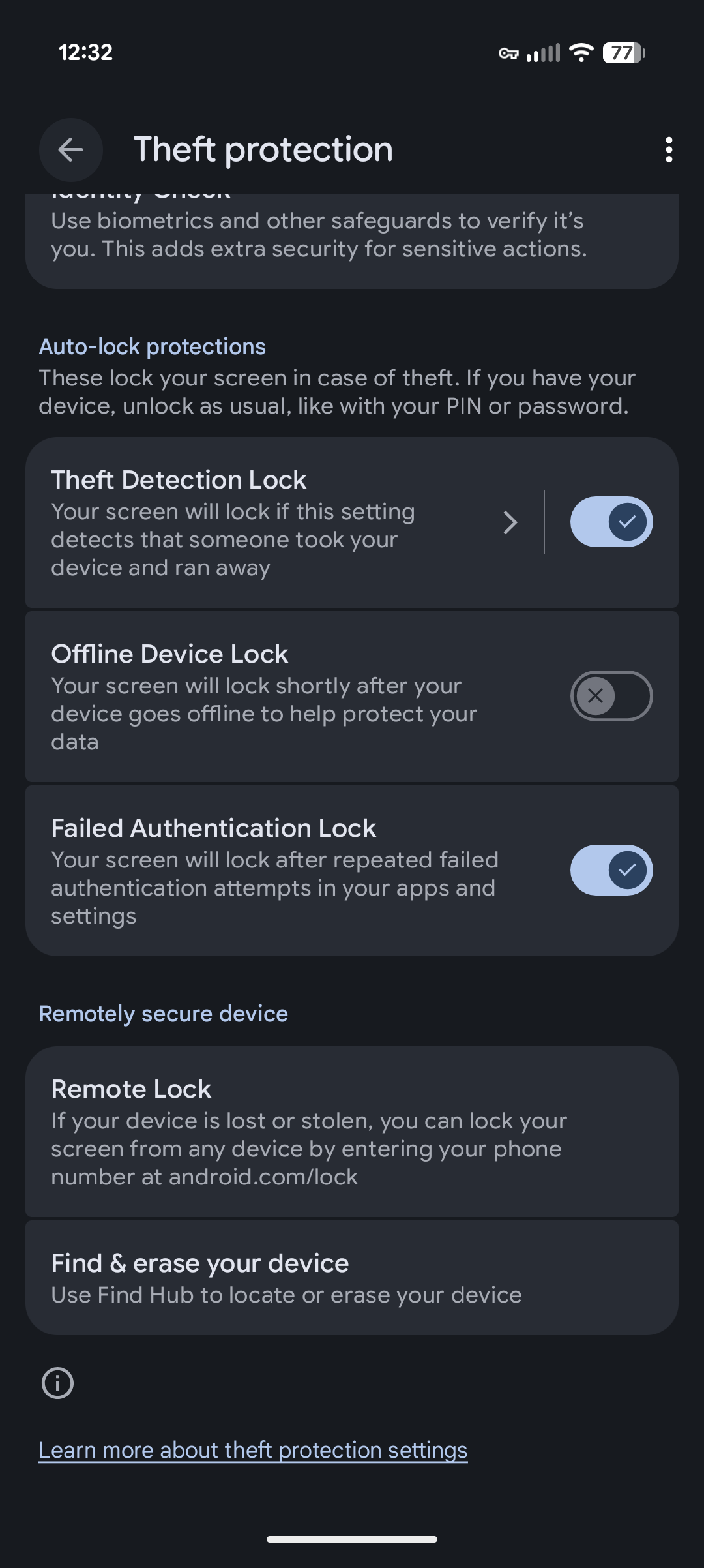
Enable Android theft protection features
Some Android devices include theft protection features such as Theft Detection Lock. On supported devices, Theft Detection Lock can detect suspicious movement that may indicate someone has snatched the phone and moved away quickly. If triggered, the phone can automatically lock.
This is useful because theft often happens while the phone is unlocked and in use, and happens extremely quickly.
Enable Offline Device Lock
Some Android devices also support Offline Device Lock.
If a thief takes the device offline, for example by enabling Airplane Mode or disabling network connectivity, Offline Device Lock can automatically lock the device after a short period.
Limit access to Android settings
On Android, you may be able to restrict or protect access to the Settings app, depending on the device and manufacturer.
Options may include:
- Hiding the Settings app
- Requiring additional authentication to open Settings
- Using Samsung Secure Folder or similar manufacturer-specific controls
- Restricting Quick Settings from the lock screen
- Requiring authentication before disabling network features
The goal is to make it harder for someone to quickly change security settings, disable connectivity, access account information or weaken the device after theft.
Review Android Security & Privacy settings
Android includes a Security & Privacy dashboard where users can review device protections.
This is a good place to check:
- Screen lock strength
- Biometric unlock
- Find My Device / Find Hub
- Theft protection
- App permissions
- Security updates
- Google Play Protect
- Sensitive notification settings
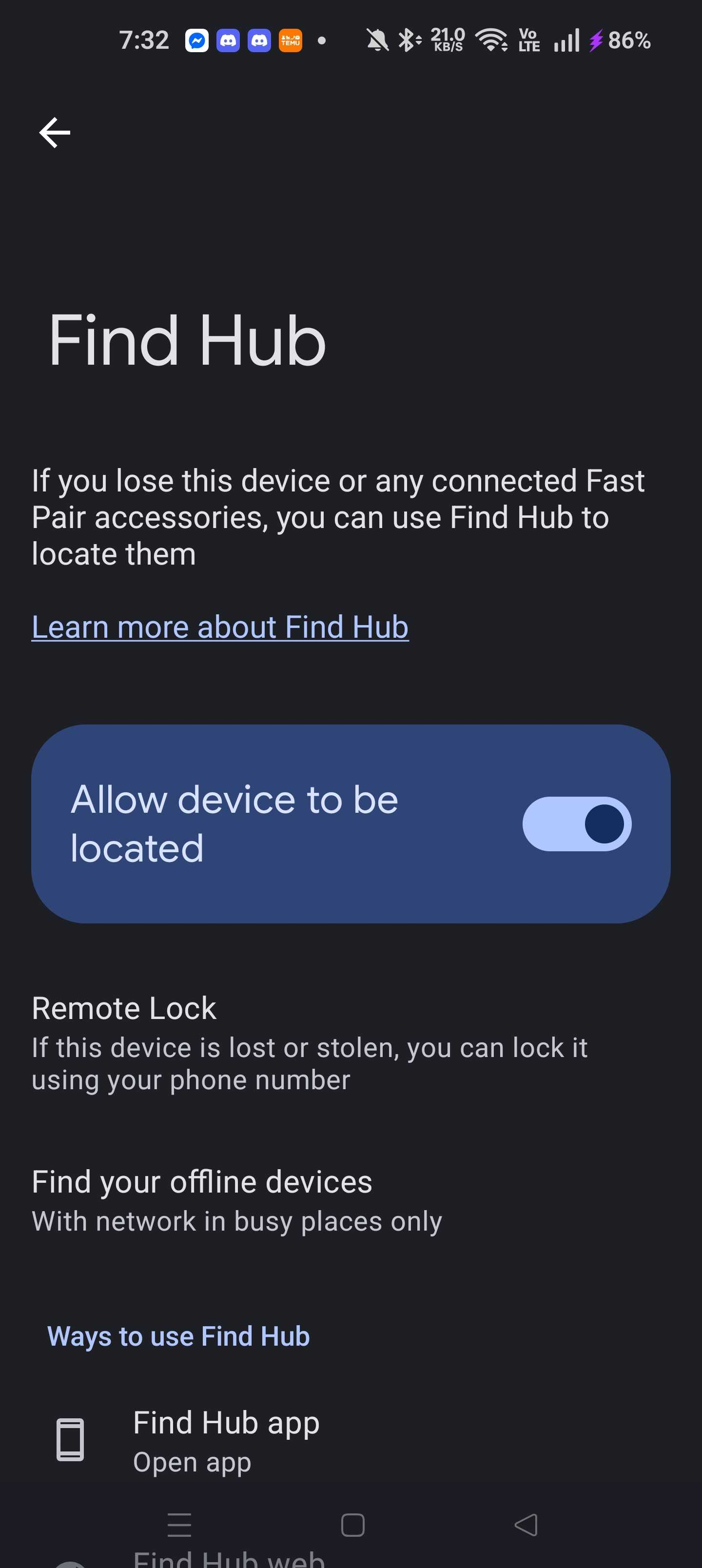
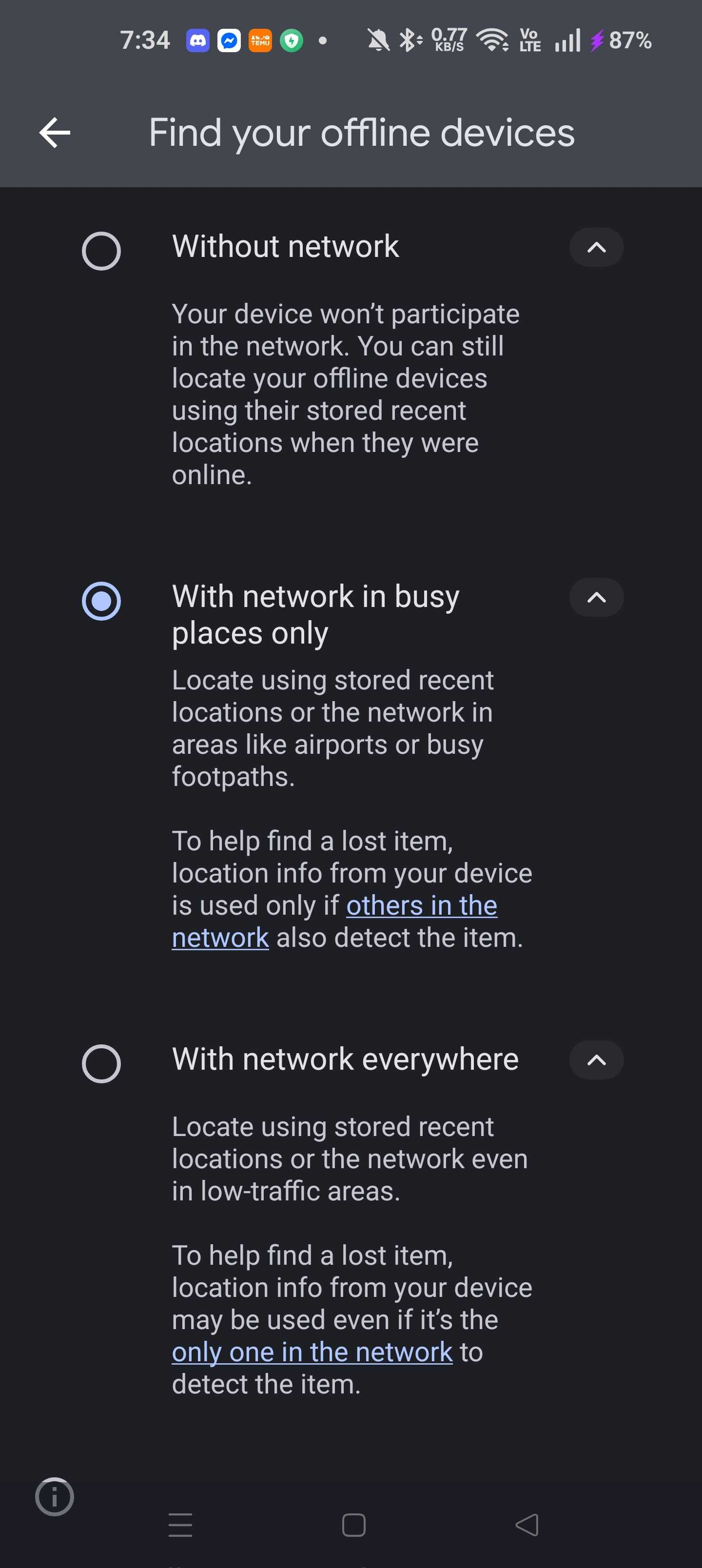
Use Find Hub or Find My Device
Android users should ensure that Find My Device or the newer Find Hub capability is enabled where available.
This allows users to remotely:
- Ring the device
- Lock the device
- Locate the device
- Erase the device
On supported devices and networks, some location features may continue to work even when the device is offline or powered off, depending on the device model and configuration.
Hide sensitive Android lock screen notifications
On Android, review notification settings and disable sensitive content from appearing on the lock screen.
Look for settings such as:
Notifications > Lock screen notifications > Hide sensitive content
This helps prevent emails, Teams messages, SMS verification codes and other sensitive notifications from being visible when the phone is locked.
Android Automation
Android automation options vary by device.
Examples include:
- Google Pixel Rules
- Samsung Modes and Routines
- Manufacturer-specific automation tools
- Work profile restrictions on managed devices
These can be used to perform actions such as:
- Enable power saving mode
- Turn mobile data on
- Disable Airplane Mode where possible
- Increase volume
- Reduce brightness
- Require additional authentication for sensitive apps
- Trigger actions when certain settings are changed
As with iOS Shortcuts, automation is useful, but it should not be treated as a substitute for proper mobile device management.
Protecting corporate mobile devices with Microsoft Security
Personal device settings are important, but organisations need a managed and repeatable approach.
This is where Microsoft Security tooling becomes valuable.
A strong mobile loss and theft strategy should combine:
- Microsoft Intune enrolment
- Device configuration profiles
- Device compliance policies
- App protection policies
- Microsoft Defender for Endpoint
- Microsoft Entra Conditional Access
- Remote actions for lost or stolen devices
- A clear incident response process
Microsoft Intune as the control plane
Microsoft Intune should be the primary control plane for managed corporate mobile devices. With Intune, organisations can configure security baselines and device restrictions for iOS/iPadOS and Android Enterprise devices, including settings such as:
- Passcode requirements
- PIN complexity
- Screen lock timeout
- Encryption requirements
- Notification restrictions
- Device compliance rules
- App deployment
- App protection policies
- Remote lock
- Locate
- Lost Mode
- Wipe
- Retire
Microsoft’s Intune device actions include capabilities to remotely manage, wipe, lock, restart and secure devices across supported platforms.
Configure passcode, encryption and screen lock policies
For both iOS and Android, Intune device restrictions and compliance policies should be used to enforce the basics.
Recommended controls include:
- Require a device passcode
- Require a minimum passcode length
- Block simple PINs where appropriate
- Require biometric unlock where suitable
- Require device encryption
- Configure a short screen lock timeout
- Block jailbroken or rooted devices
- Require the device to be compliant before accessing corporate data
The shorter the screen lock timeout, the smaller the window of opportunity if a device is taken while unlocked or left unattended.
Hide lock screen notification previews with Intune
Lock screen notifications can leak corporate data.
Using Intune, organisations can configure device restrictions to limit or hide notification previews on managed devices.
This is particularly important for apps such as:
- Outlook
- Teams
- Authenticator
- SMS apps
- Password managers
- HR/payroll apps
- Line-of-business apps
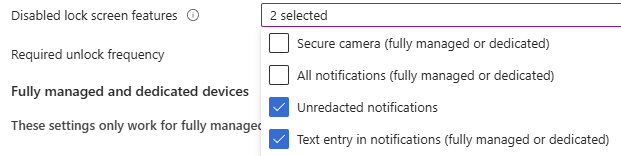
The goal is to prevent sensitive corporate information or MFA codes from appearing on the lock screen.
App Protection Policies
Not every mobile device is fully managed. Some organisations allow BYOD access to corporate apps such as Outlook, Teams, OneDrive and Edge. In these scenarios, Intune App Protection Policies are essential.
App Protection Policies protect corporate data at the application layer, even when the device itself is not fully enrolled into Intune.
They can help control:
- Copy and paste between managed and unmanaged apps
- Saving corporate data to personal locations
- Opening corporate links in unmanaged browsers
- Blocking screenshots
- Requiring a PIN or biometric prompt before opening managed apps
- Blocking access on jailbroken or rooted devices
- Wiping corporate app data without wiping the whole device
Microsoft’s App Protection Policy framework includes controls such as blocking save copies of organisational data, restricting cut/copy/paste between apps, and blocking screen capture.
This is especially important for lost or stolen phones because the organisation may need to remove corporate data without impacting a user’s personal data.
Using Defender for Endpoint
Microsoft Defender for Endpoint can be deployed to supported Android and iOS/iPadOS devices and integrated with Intune. For mobile devices, Defender can contribute risk signals that can be used in compliance and Conditional Access decisions.
Defender for Endpoint on mobile, together with Intune and Microsoft Entra ID, can enforce device compliance and Conditional Access based on device risk levels. This means that if a device becomes risky, compromised, rooted, jailbroken or exposed to mobile threats, access to corporate resources can be restricted.
We can also go one further, and fully isolate a mobile to prevent risk of access to data requiring a network connection.
Mobile threat defence and compliance policies
Intune can also integrate with Mobile Threat Defence providers and use threat levels as part of device compliance.
Intune can use Mobile Threat Defence partner data in compliance policies and Conditional Access rules to help protect corporate resources such as Exchange and SharePoint by blocking compromised mobile devices.
For a loss or theft strategy, this provides another layer of assurance. A device should not simply be allowed access because it has valid credentials. It should also meet compliance and risk requirements.
Use Microsoft Conditional Access
Conditional Access is one of the most important controls in this scenario. If a device is lost or stolen, you shouldn't just care about the device itself. We need to consider the access that device has to cloud services.
Conditional Access can require that devices are compliant with Intune before they can access corporate resources. Intune compliance status is reported to Microsoft Entra ID, and Conditional Access can use that compliance status to grant or block access to organisational resources.
Recommended Conditional Access approaches include:
- Require compliant devices for mobile access to corporate apps
- Require approved client apps or app protection policies for BYOD
- Block access from unsupported platforms
- Require MFA for higher-risk sessions
- Use sign-in risk and user risk where licensed
- Block access when device compliance is lost
- Create an emergency “lost or stolen device” control group
The lost or stolen group can be used to block all access to cloud resources. We can then use this elsewhere to be notified of attempts against a device that has been reported as lost or stolen.
The Conditional Access Policy
One practical defence-in-depth approach is to create a dedicated group, for example:
CA-BLOCK-Lost-Or-Stolen-Mobile-DevicesThen create a Conditional Access policy that blocks access to all cloud apps for members of that group. When a device is reported lost or stolen, the user or device-related account can be added to this group as part of the incident response process.
This should not be the only action taken, but it provides a clear emergency access control while the device is being investigated, locked, wiped or replaced.
Revoke Active Sessions
When a mobile device is reported lost or stolen, session revocation is critical.
Even if the password is changed, existing sessions may remain valid for a period of time depending on the application, token lifetime and session controls.
As part of your response process, consider:
- Revoking user sessions
- Requiring re-authentication
- Resetting the user password if compromise is suspected
- Reviewing recent sign-ins
- Reviewing MFA methods
- Removing suspicious registered devices
- Reviewing inbox rules and OAuth app grants where appropriate
For high-risk incidents, do not only wipe the device. Treat the incident as a potential identity compromise.
The security Playbook
When a managed device is reported as lost or stolen, it is important to act quickly but also to follow your internal SOP.
A recommended process is:
- Confirm the user and device details.
- Identify whether the device is corporate-owned or BYOD.
- Confirm the platform and enrolment type.
- Revoke active sessions.
- Place the device or user into a Conditional Access block group if required.
- Use Intune remote actions where supported.
- Enable Lost Mode or remote lock where appropriate.
- Locate the device where permitted and supported.
- Decide whether to wipe, retire or selectively wipe corporate data.
- Review sign-in logs and activity after the reported loss.
- Replace the device and reissue secure access.
- Document the incident.
Enable lost mode
For supervised iOS/iPadOS devices, Microsoft Intune supports Lost Mode. This is a device action that allows administrators to remotely lock and track lost or stolen devices. When activated, it can display a custom message and contact phone number on the device lock screen.
This is particularly useful for corporate-owned supervised devices.
When choosing your Lost Mode message, wording matters.
A message such as:
This device has been reported as missing. Please contact [helpdesk number] to arrange return.
may be more likely to lead to a Good Samaritan returning the device than:
This device has been stolen.
The first message is firm, professional and recovery-focused.
Locating the device
For misplaced devices, Intune can trigger a sound on supported platforms. Intune can trigger an audible alert on supported devices, including iOS/iPadOS devices in Lost Mode and supervised state, and corporate-owned Android Enterprise devices.
This can be useful when a device is believed to be nearby or misplaced rather than stolen.
Remote lock the device
Remote lock can be used when the device is believed to be recoverable or when you need to immediately reduce the risk of casual access.
This is useful where:
- A user left a phone in a taxi
- A device was left in a public area
- A device was misplaced in the office
- The device is believed to be nearby
- The device should not yet be wiped
Wipe or retire the device
If the device is confirmed stolen, unrecoverable or high-risk, a wipe may be appropriate.
Microsoft Intune supports wipe actions for managed devices. A wipe should be treated as a significant action and should follow an agreed approval process, especially for BYOD or personally enabled devices.
The decision should consider:
- Is the device corporate-owned or personally owned?
- Is it fully managed or app-protected only?
- Is corporate data stored locally?
- Is the device encrypted?
- Was the device unlocked when stolen?
- Are there signs of account compromise?
- Are there legal, HR or evidential requirements?
For BYOD scenarios, a selective app wipe may be more appropriate than a full device wipe.
Recommended Microsoft Intune Policy Baseline
The following is a practical baseline for mobile loss and theft protection.
iOS/iPadOS device restrictions
Recommended settings:
- Require passcode
- Block simple passcodes
- Require minimum passcode length
- Require alphanumeric passcode where appropriate
- Set maximum minutes of inactivity before screen lock
- Hide lock screen notification previews
- Block account modification where appropriate
- Block unmanaged app installation where appropriate
- Require encrypted backup where applicable
- Restrict data sharing between managed and unmanaged apps using App Protection Policies
Android Enterprise device restrictions
Recommended actions:
- Require device passcode
- Require minimum PIN/password complexity
- Set maximum inactivity before lock
- Require encryption
- Hide sensitive lock screen notifications
- Disable or restrict Quick Settings where supported
- Restrict factory reset where appropriate
- Require Play Protect where applicable
- Separate work and personal data using Android Enterprise work profile or corporate-owned enrolment
- Apply App Protection Policies to Microsoft mobile apps
Device Compliance
Recommended compliance checks:
- Require device to be marked compliant
- Block jailbroken or rooted devices
- Require minimum OS version
- Require threat level at or below an agreed threshold
- Require Microsoft Defender for Endpoint risk level at or below an agreed threshold where configured
- Mark devices non-compliant if they have not checked in recently
App Protection
Recommended App Protection Policy controls:
- Require app PIN or biometrics
- Block copy/paste to unmanaged apps
- Block saving corporate data to unmanaged locations
- Open web links in Microsoft Edge
- Encrypt corporate app data
- Selectively wipe corporate data when access is removed
- Block access on jailbroken or rooted devices
- Set offline grace periods
- Require re-authentication after a defined period
Conditional Access
Recommended Conditional Access controls:
- Require compliant device for corporate-owned mobile access
- Require app protection for BYOD
- Block unsupported mobile platforms
- Use sign-in risk and user risk where available
- Block access for users or devices in a lost/stolen response group
- Require MFA for risky sessions
- Require re-authentication for sensitive applications
Limitations to be aware of
Lost Mode support depends on platform and enrolment
Some remote actions only work on specific platforms, ownership models or enrolment types. For example, iOS/iPadOS Lost Mode is only available for supervised devices. BYOD devices will not have the same management capability as corporate-owned supervised devices.
Location tracking is not guaranteed
Location may fail if:
- The device is offline
- The battery is dead
- Location services are disabled
- The device has been reset
- The device has no network connectivity
- The platform does not support the action
- The enrolment type does not permit it
A wipe request can have a delay
Remote wipe depends on the device receiving the command.
If the device is offline, switched off or blocked from network access, the wipe may not complete until the device reconnects. Always be sure to check that the wipe has completed successfully before signing this off with the business.
BYOD approach
For personally owned devices, organisations should be careful about privacy and proportionality.
In many BYOD scenarios, the preferred approach is:
- App Protection Policies
- Selective wipe of corporate app data
- Conditional Access blocking
- Session revocation
- Removal of corporate access
rather than full device management and full device wipe.
My phone was stolen - Now what?!
If your phone is stolen, act quickly.
For individuals
- Use Find My iPhone, Find My Device, Find Hub or SmartThings Find.
- Mark the device as lost.
- Lock the device.
- Display a recovery message.
- Contact your mobile provider and report the theft.
- Ask your provider to block the SIM and IMEI where appropriate.
- Change passwords for key accounts.
- Revoke active sessions where possible.
- Review MFA methods.
- Report the theft to the police if appropriate.
- Restore your data to a replacement device from backup.
For employees on a corporate device
- Report the loss immediately to IT or the Service Desk.
- Confirm whether the device was unlocked when lost or stolen.
- Confirm the last known location and time.
- Do not attempt to recover the device yourself if theft is suspected.
- Follow internal security procedures.
- Be prepared to reset passwords or re-register MFA if required.
For security teams
- Identify the user, device and ownership type.
- Revoke active sessions.
- Review sign-in activity.
- Disable or restrict access if compromise is suspected.
- Use Intune remote lock, locate, Lost Mode or wipe as appropriate.
- Selectively wipe corporate data for BYOD where appropriate.
- Add the user or device to a Conditional Access block group if required.
- Review mailbox, Teams, SharePoint, OneDrive and app activity.
- Check for suspicious MFA changes or new registered devices.
- Record the incident and actions taken, and update asset records.
FAQs
What is the best way to protect a lost or stolen mobile phone?
The best protection is a layered approach. Use a strong passcode, biometrics, hidden lock screen notifications, device encryption, regular backups and a device recovery service such as Find My iPhone or Find My Device. For business devices, use Microsoft Intune, Microsoft Entra Conditional Access, Microsoft Defender for Endpoint and App Protection Policies.
Can Microsoft Intune track a lost phone?
In short, yes. Microsoft Intune can locate supported managed devices, depending on the platform, enrolment type and device state. For iOS/iPadOS, Lost Mode is available for supervised devices. Location actions should only be used where authorised and appropriate.
What is Intune Lost Mode?
Intune Lost Mode is a remote action for supported devices that allows administrators to lock a lost device and display a custom message and contact number on the lock screen. It can help protect corporate data and improve the chance of recovery.
Can Intune wipe a stolen mobile phone?
Yes, Intune can wipe supported managed devices. For corporate-owned devices, a full wipe may be appropriate if the device is stolen or unrecoverable. For BYOD devices, a selective wipe of corporate app data may be more appropriate. Wipe actions like this should be recorded on your incident timeline for audit purposes.
What is the difference between wipe and retire in Intune?
A wipe removes data from the device and is generally used when a device is lost, stolen, being reissued or leaving the organisation. Retire removes corporate management and corporate data but is less destructive than a full wipe. The correct action depends on ownership, enrolment type and risk.
How can Conditional Access help with a stolen phone?
Conditional Access can block or restrict access to corporate cloud apps. For example, organisations can require devices to be compliant with Intune before accessing email, Teams, SharePoint or OneDrive. A dedicated lost/stolen device group can also be used to quickly block access during an incident.
Can App Protection Policies protect data on personal phones?
Yes. Intune App Protection Policies can protect corporate data inside managed apps such as Outlook, Teams, OneDrive and Edge, even when the device is not fully enrolled. They can restrict copy/paste, saving corporate data to personal locations and access from rooted or jailbroken devices.
Should I hide text messages and MFA codes from my lock screen?
Yes. Lock screen previews can expose SMS codes, password reset links, MFA prompts and sensitive business messages. Disabling sensitive lock screen notifications is one of the simplest and most effective protections against data leakage from a stolen phone.
What should an employee do first when a work phone is stolen?
The employee should report the theft to IT or the Service Desk immediately. They should provide the device type, phone number, last known location, time of loss and whether the phone was unlocked. IT can then revoke sessions, restrict access and use Intune remote actions where appropriate.
Acknowledgements
- Effie A. (Discord) - A massive thank you for your kind support with the Android policies and the screenshots, you were invaluable!
- Graham Gold (MVP) - Thank you for sanity-checking my Android policies, particularly with your colleagues, as I know you refuse to be known as "The Android man"!
- Niel Nielsen - Thank you for your support on the Android security, and valued input.
- Tristian Kelly - For the Android settings screenshots and knowledge on individual Android manufacturers.

Philip Marsh
Writing practical notes on Microsoft security, identity protection, detections, and building safer systems.
View all posts